Team MyOPD

Hospital Management Software – Train Yourself

One of the important aspects of any Hospital Management Software is the support available for training while using the software.

At MyOPD, we are continuously improving our videos to help you understand the functionality of the software. You can check these while using the software as well as share with your staff so that it is easier for your staff to use it.

Here is a link to our YouTube Tutorials: https://youtube.com/playlist?list=PLvf4pA7qB-L5zSLtoXiuiO8bCPQrsiuiR

Get in touch with us if you are interested! Drop a mail to [email protected]

Hospital Management Software – Train Yourself Read More »

MyOPD One-Time Plan vs Subscription Plan

Introducing MyOPD Subscriptions for Windows Version

The past year has been really hard on everyone. In these testing times, we are offering you MyOPD Software in a way that was never offered before, ever!

We are glad to announce MyOPD Subscription for Doctors who feel the one time price is a very high investment to begin with.

Read through questions below to understand subscription plan and how it compares with one-time option:

  • What is the price I have to pay to start using the MyOPD Windows software with all features and support?
    • Under MyOPD Subscription plan, you will pay
      • An yearly charge for MyOPD Clinic Software. Check the pricing of one-time and subscription plans.
  • Don’t I have to pay the one-time charges to begin with?
    • No. Those are one-time plans. You can pay those charges if you are interested in one-time purchase.
  • What is the difference between one-time purchase and subscription plans?
    • With One-Time Purchase –
      • Your first year Annual Maintenance Cost (AMC) is included in the price of software.
      • After first year, even if you do not pay your AMC, the Windows version of the software keeps working. There is no compulsion to purchase the AMC. You will not receive any software updates or support for the software unless you have active AMC.
    • With Subscription Plan –
      • Your AMC is covered for the year you use the software
      • If you do not renew the AMC, you cannot use the software
  • So what is the benefit with subscription?
    • You get top notch software which is already being used in India, Kenya, Jordon, Oman and Iraq with all its features provided in your region
    • You get regular updates of the software for the duration of your subscription period
    • You are covered under support plan provided by MyOPD Support team
    • You get to use MyOPD Windows companion Android app and iOS app along with this Windows version
    • Your initial investment to start is less for clinic based version. You don’t have to spend a higher amount upfront to just get started with software.
  • Can we convert the subscription plan to one-time later?
    • Yes. However, you will have to purchase the one-time plan in full when you do so.
  • Will I get SMS as a part of subscription?
    • Yes. 500 SMS valid for 1 year will be offered as a part of the package.
  • How do I get started?
  • Are there subscription plans for MyOPD Beds Hospital version as well?

Are you interested in MyOPD Clinic Software? The software is free to try.
Signup at https://www.myopd.in/

Photo by jaikishan patel on Unsplash

MyOPD One-Time Plan vs Subscription Plan Read More »

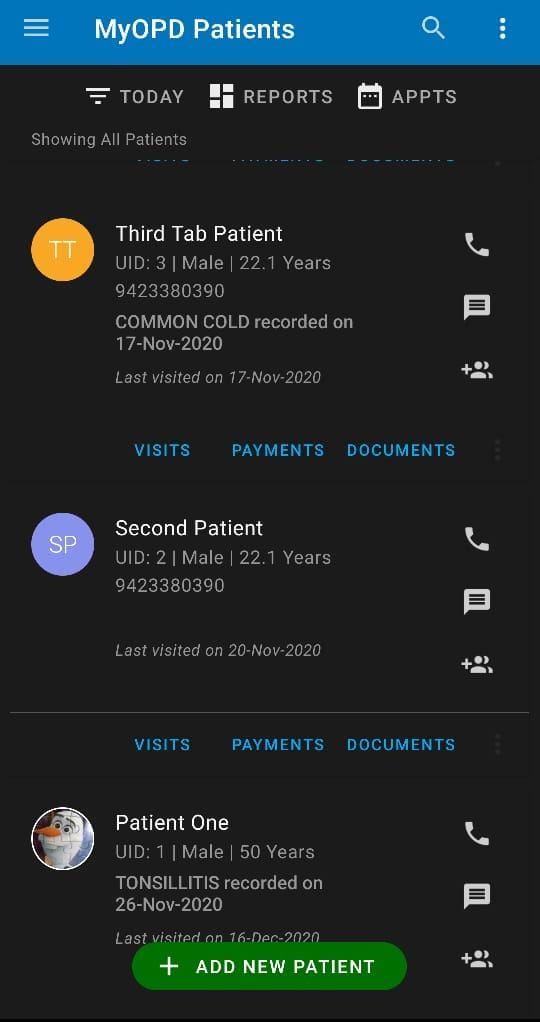
MyOPD ZIP Clinic Software with Dark Mode Theme

Introducing MyOPD ZIP with Dark Mode

What is Dark Mode?

Doctors using MyOPD ZIP for their practice spend most of their time working with MyOPD ZIP app. Looking for long hours at the phone screen could cause strain on eyes.

MyOPD ZIP now uses the support provided by Android OS to allow Dark Mode in app.

Using Dark Mode gives less strain on eyes, plus it would save your phone battery while working as major part of screen remains dark without any illumination.

How to enable Dark Mode on your Android phone?

  1. Open phone Settings
  2. Search for Dark Theme or Dark Mode
  3. You will see this setting under the Display section
  4. Toggle it to Enable / Disable Dark Mode
  5. Once Dark Theme is set for the phone, MyOPD ZIP automatically picks it up and uses it in the app

MyOPD ZIP Dark Mode – Because we care for your eyes…

If you haven’t yet tried MyOPD ZIP, download the free trial from Google Playstore at: MyOPD ZIP for Doctors and Clinics

MyOPD ZIP Clinic Software with Dark Mode Theme Read More »

Choosing the Right Hospital Software or Clinic Software

Choosing the Right Hospital Software or Clinic Software can be a tricky task.

There are many thoughts Doctors have in mind about their practice:

  1. I’m comfortable practicing on a PC / Laptop
  2. I am looking for a Basic Clinic / OPD Version. No IPD / Hospital version required.
  3. I’m comfortable practicing on my Android Phone / Tablet or iPAD
  4. Can we both, husband and wife practice using the same software?
  5. Can I practice along with other Doctors in the clinic? Are there extra charges for this?
  6. Will this same version work for my Hospital?
  7. Will this same software work on Laptop as well as mobile?

Such thoughts can leave you confused

To simplify the decision making, we have created a tool which will guide you quickly to the type of product you are looking for and the available options we have with us. Based on your selection, it will guide you to the right product in our catalog.

Give it a try right here at MyOPD Product Selection Form

Photo by Javier Allegue Barros on Unsplash

Choosing the Right Hospital Software or Clinic Software Read More »

Do I really need Product Support?

Many Doctors have doubts in their mind about product support. Based on our years of product support, since 2012, we have compiled a list of common support call requests.

Here are top 5 reasons for having product support:

  1. Handling computer updates and Change of computers:

  2. First there was Windows XP then came Windows 7 then Windows 8 then Windows 8.1 and now Windows 10. Usually software updates from vendors take care of changes in operating system. However, support teams take care of smoothly transitioning you from one OS to another so that you can focus on your work. This is the top most reason we have seen for our customer support.

  3. Computer Crash and Format of computer:

  4. Computer crashes happen randomly. These can be because of issues with operating system upgrades, faulty hardware and so on. Our teams handles such issues so that Doctors can focus on their work while we make sure their software works fine. This is the 2nd most reason for which we get support requests.

  5. Teach me how to use a particular feature:

  6. This is the 3rd top reason we receive requests for. You keep on using the software on a regular basis. Then you want to start using a new feature present in software. Say for e.g: Contactless Payments. The support team explains you the feature so that you can start using it.

  7. Feature not working as expected:

  8. There are situations where things don’t work as expected. In such cases, you need a team to hear your concern and address it. MyOPD Support team talks to Doctors, understands their concerns an provides resolution so that they can move on and keep using software effectively.

  9. Suggesting new Ideas that come to your mind:

  10. In changing world, as you keep on practicing, you get new ideas to be done via software. MyOPD has a way to collect these ideas and implement them in software. To give example: During the COVID Pandemic initial stage of lockdown, we introduced WhatsApp Share feature. This allowed clients to share a PDF Rx via WhatsApp so that patients can get their prescriptions directly on phone, via WhatsApp.

With MyOPD, you have a team which is dedicated to support the product while you keep practicing with peace of mind. MyOPD’s product support plan is like insurance, you may not need it always. More so, it is better to not need it at all. However, if there is a need, you better be covered!

Photo by Shane Rounce on Unsplash

Do I really need Product Support? Read More »

Using MyOPD ZIP for Android on Windows PC or Mac

MyOPD-Contactless-Payments-Online-Payments

Please follow below steps to use MyOPD ZIP for Android on Windows PC or Mac:

1. You need a Windows 7, 8 or 10 PC with at least Intel i3 @ 2 GHz+ or AMD equivalent processor and at least a minimum of 4 GB RAM. For Mac, make sure you have MacOS 10.13 (High Sierra or above) with 4 GB RAM.

2. Download Bluestacks Android emulator from https://www.bluestacks.com/ for the version of your choice – Windows or Mac

3. Install the Bluestacks Android emulator on your Windows PC or Mac

4. Sign-in to your Google Account

5. Download MyOPD ZIP app from Google Play

6. Sign-in to MyOPD ZIP app and start using on Windows PC along with Phone / Tablet.

You can also check detailed Recommended System Requirements for Bluestacks

This type of working suites those Doctors who are comfortable in using PC or Mac in front of patients and still want their data on mobile while they are away from the clinic.

To print the Rx from Windows PC or Mac, you would require PrinterShare app from Google Playstore.

Please note, the printershare app is paid. You can try it for free and then use the paid version.

The best part is, you don’t have to pay any additional charge for MyOPD ZIP to be used in this way!

If you haven’t tried MyOPD ZIP yet, try it now. It is free to try. Download from Google Playstore at: https://play.google.com/store/apps/details?id=in.myopd.android

Should you have any questions, feel free to write us an email at [email protected]

Photo by Luis Villasmil on Unsplash

Using MyOPD ZIP for Android on Windows PC or Mac Read More »

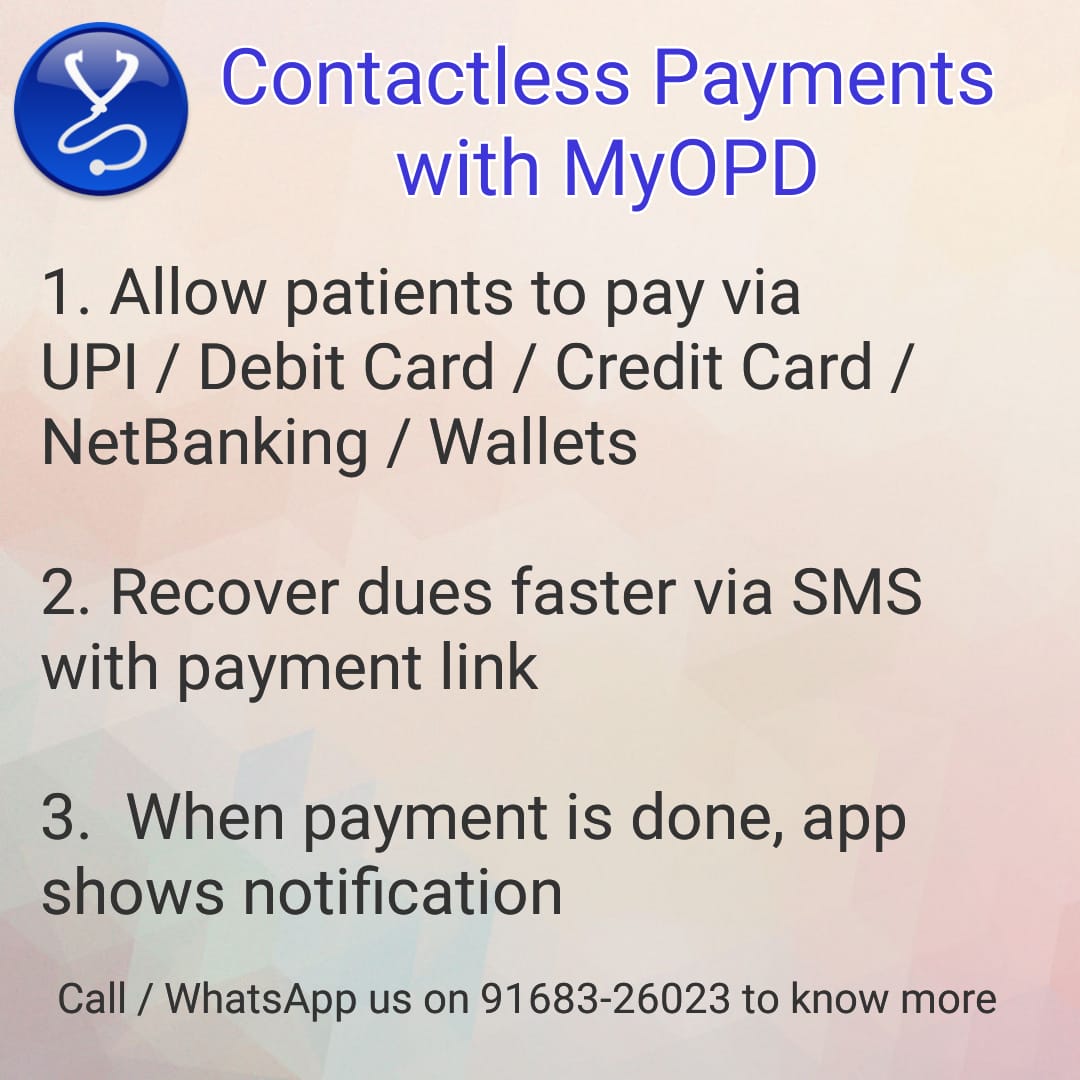
Contactless Payments with MyOPD

MyOPD-Contactless-Payments-Online-Payments

#Payments Simplied using MyOPD #EMR Software.

Offer #patients more options to pay. Avoid cash handling. Take the next step for your #clinic. This feature is especially useful during #onlineconsultations.

Contactless Payments with MyOPD Read More »

Prescription Sharing via WhatsApp

Prescription Sharing via WhatsApp Read More »

COVID19 Fitness Certificate for Migrants

COVID19-Fitness-Certificate

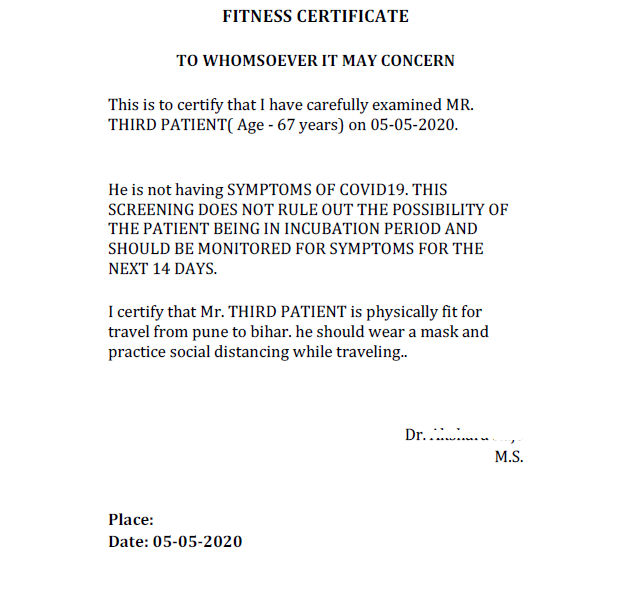
Movement of people across states and regions has now started in India. However, migrants must have a valid Fitness Certificate for travel.

In Pune, India, the certificate format that was supplied to Doctors.

MyOPD software allows you to create such a fitness certificate. Copy generated by the MyOPD Software based on sample given by the Government is shown in the image above. You can print it on your own Letter Head or on a Plain paper by adding Doctor and Clinic Name in the header.

How to generate COVID19 Fitness Certificate?

  • Add New Patient if not already existing
  • Examine the patient and save the visit
  • Click Fitness Certificate option
  • Choose Other option under Health Condition section. Then type the required matter.
  • Choose Other option under I certify that section. Then type the required matter.
  • Copy the typed matter in section 4 & 5 in Notepad so that it can be reused for other patients.
    If you are not seeing the Other option in 4 & 5, you are using an older version of software. Please upgrade to latest version to use this feature.
  • If you are not seeing the Other option, you are using the older version of the software. Please upgrade your software using Help -> Check for updates to get the latest version.

    If you have any issues while using any of these features, get in touch with us over WhatsApp on +91-91683-26023 or mail us at [email protected].

    COVID19 Fitness Certificate for Migrants Read More »

    Telemedicine / Teleconsultation using MyOPD Software

    Telemedicine

    As the SARS-COV2 progresses, many Doctors are engaged in telephonic consultation.

    We guide you through the basic steps using which you can work with patient in this situation using MyOPD Windows version or Android app version.

    Step 1: Video Calling

    Doctors in India can use any of the popular apps like Google Duo or WhatsApp Video or Skype call to consult a patient. These are currently allowed as per the NITI Aayog’s telemedicine guideline. While Doctors abroad can also use these apps, please check if the respective governments do not mind using these apps for online consultation.

    Below are the instructions given to share Rx for Windows version. If you are using MyOPD ZIP Android app, please scroll to the next section to follow instructions for the Android app.

    Step 2 for Sharing Rx over WhatsApp or Email in Windows Version

    Once you document the case in the MyOPD Windows version software, you can share Rx as a PDF with the patient over Email / Whataspp.

    2.1 Setup Signature:

    Prior to sending Rx with your patient, you need to setup your signature in the app and then send the Rx to the patients.

    Read the steps to share Rx here: https://secure.myopd.in/support/kb/faq.php?id=51

    2.2 Generate PDF for sharing:

    Generate PDF to be shared with the patient.

    Please follow the steps given here: https://secure.myopd.in/support/kb/faq.php?id=52

    Also, for Doctors who want to share payment QR code over the generated PDF, use Option 3 given in the steps above.

    Step 2 for Sharing Rx over WhatsApp or Email in MyOPD ZIP Android version

    If you are using the Android app version, please follow the steps given here:
    https://secure.myopd.in/support/kb/faq.php?id=49

    If you have any issues while using any of these features, get in touch with us over WhatsApp on +91-91683-26023 or mail us at [email protected].

    Photo by National Cancer Institute on Unsplash

    Telemedicine / Teleconsultation using MyOPD Software Read More »